# Home Assistant ESP Screens
A Home Assistant control screen that you lay out yourself. **ESP Screen Manager**
manages your tiles and builds and installs the ESPHome firmware from Home Assistant.
No blueprint, MQTT, or long-lived token needed for normal use.
**New screen? Follow the [complete installation guide](docs/EASY_SETUP.md).**
For every new user and every new device, you create your own profile.
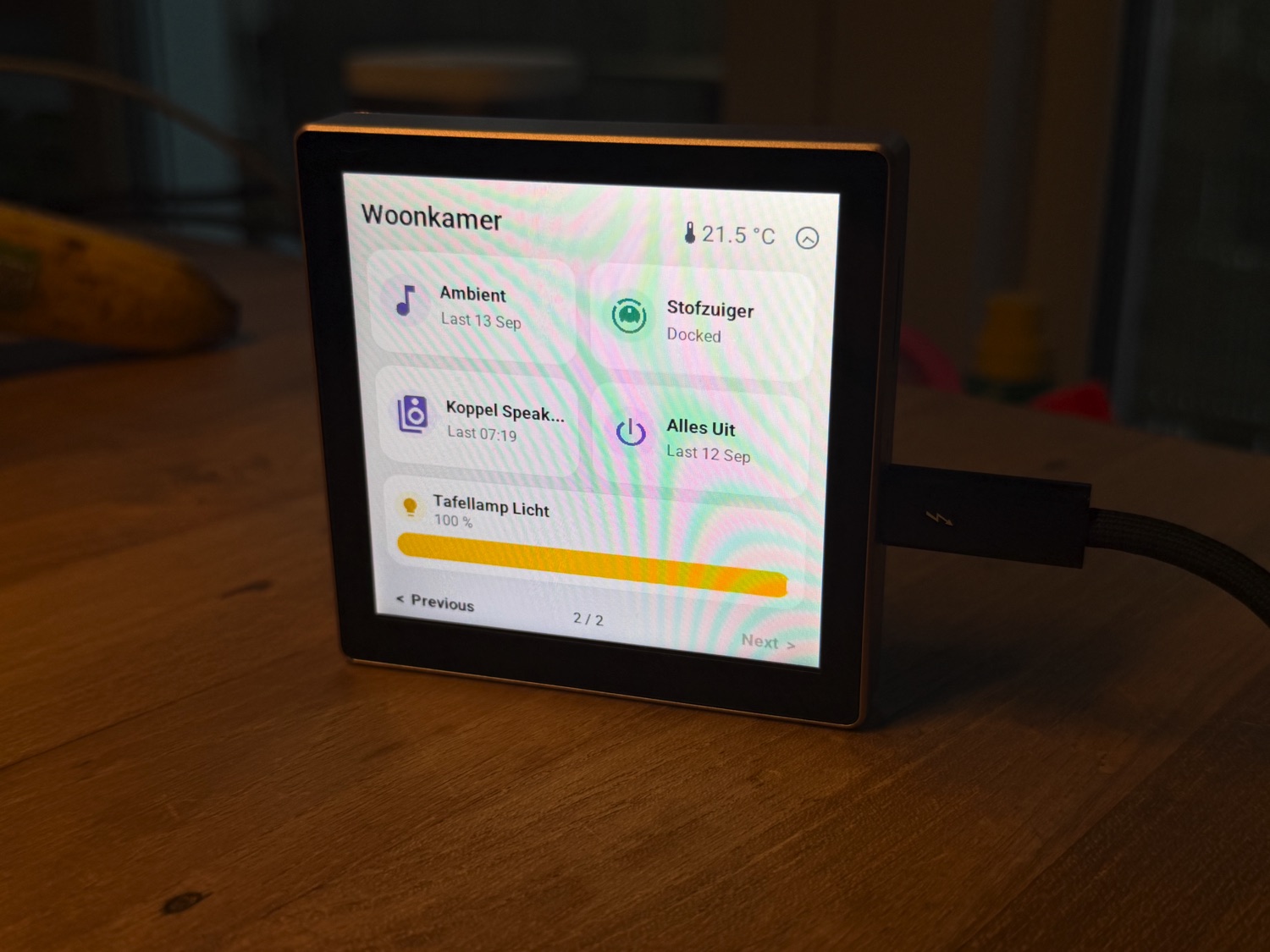
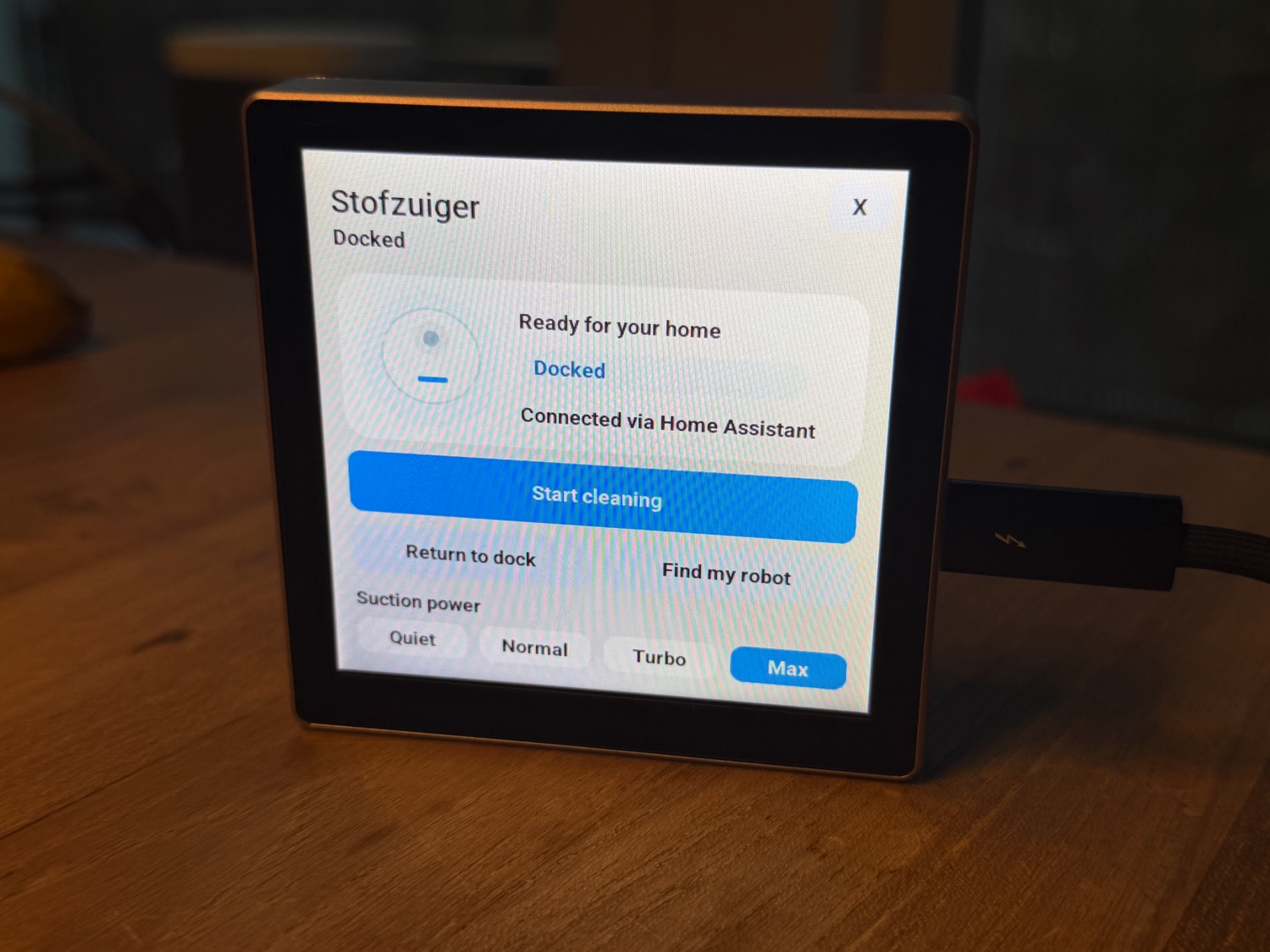
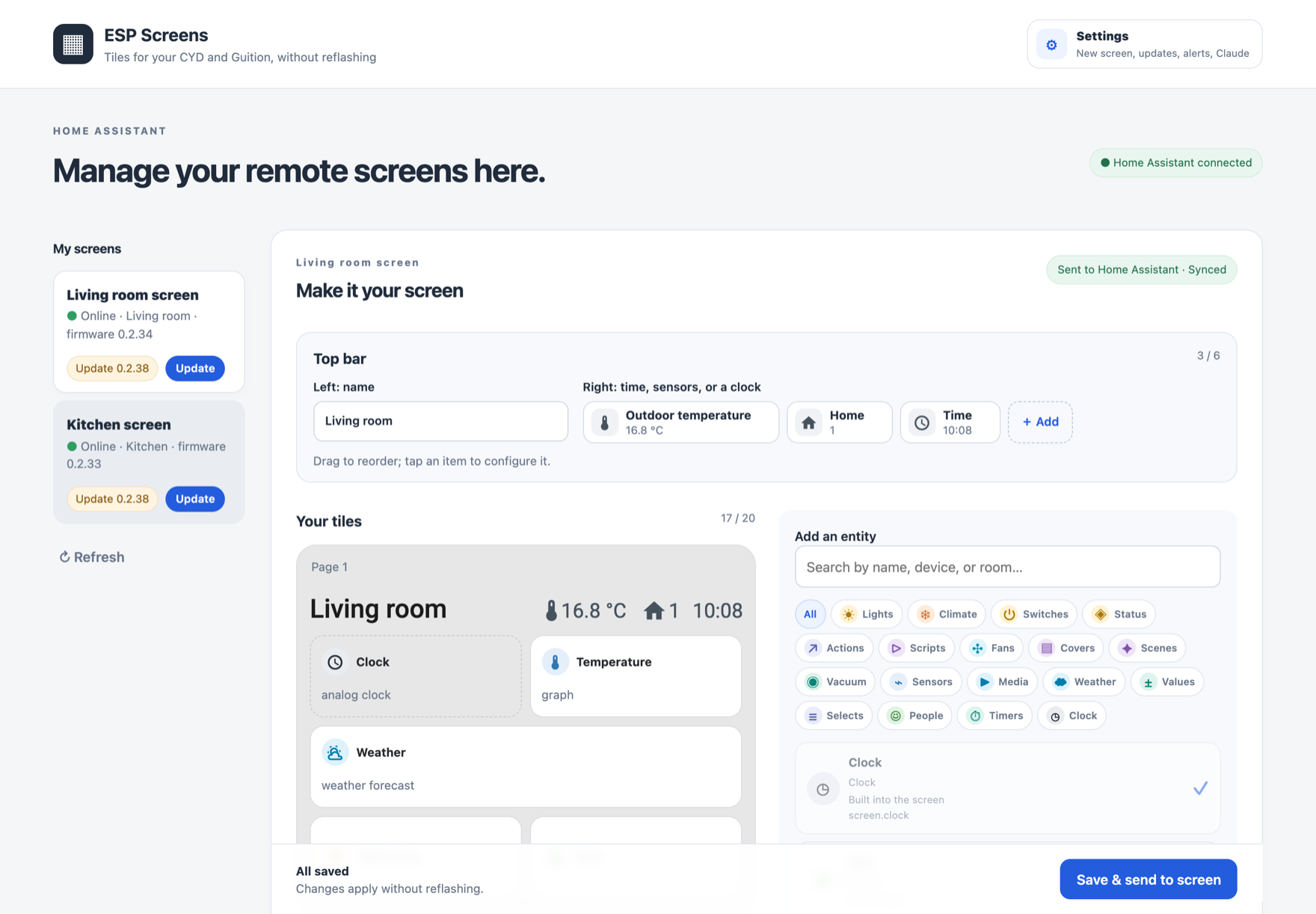
A Guition ESP32-S3-4848S040 at home, and the ESP Screens page in Home Assistant with a demo home.
## Supported screens
| Screen | Resolution | Display / touch |
| --- | --- | --- |
| CYD ESP32-2432S028 | 320 × 240 | ILI9341 / resistive XPT2046 |
| Guition ESP32-S3-4848S040, 4 inch | 480 × 480 | ST7701S RGB / capacitive GT911 |
Use these exact board variants: similar-looking product names can have different
controllers or connectors. Wallbox relays are not controlled.
The firmware and built-in CLI are tested with **ESPHome 2026.6.2**.
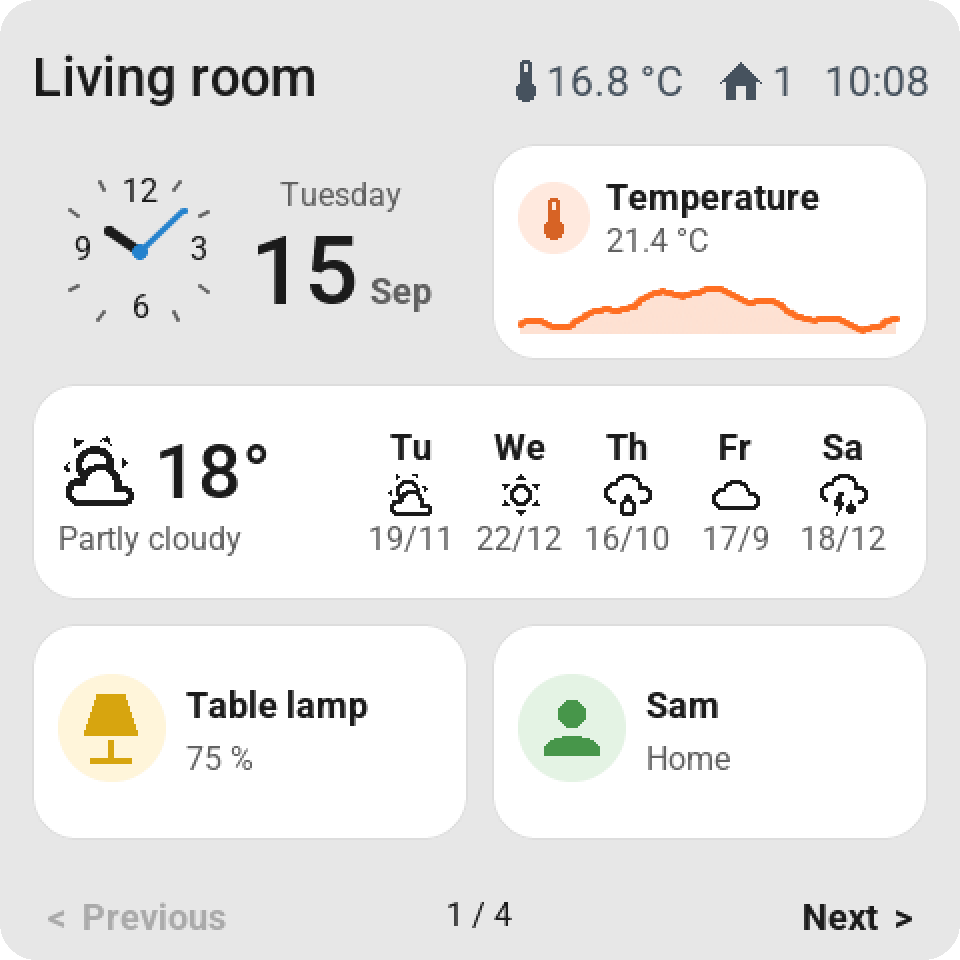
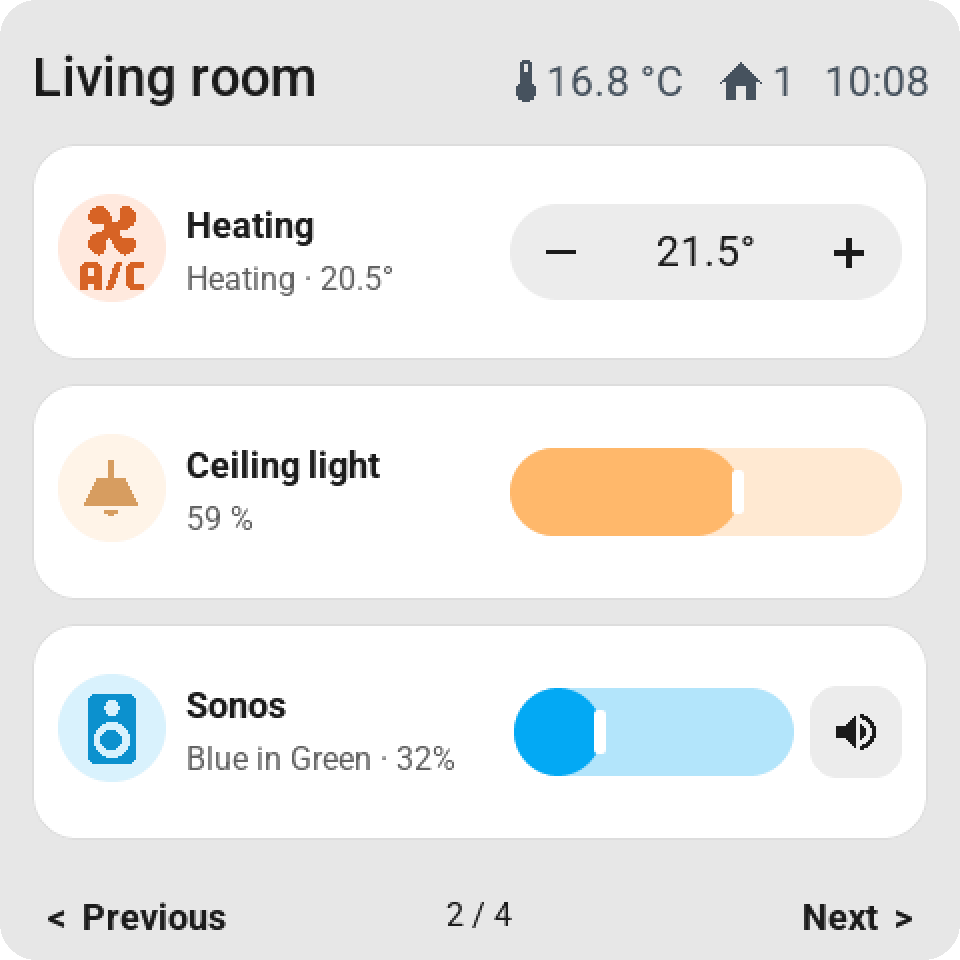
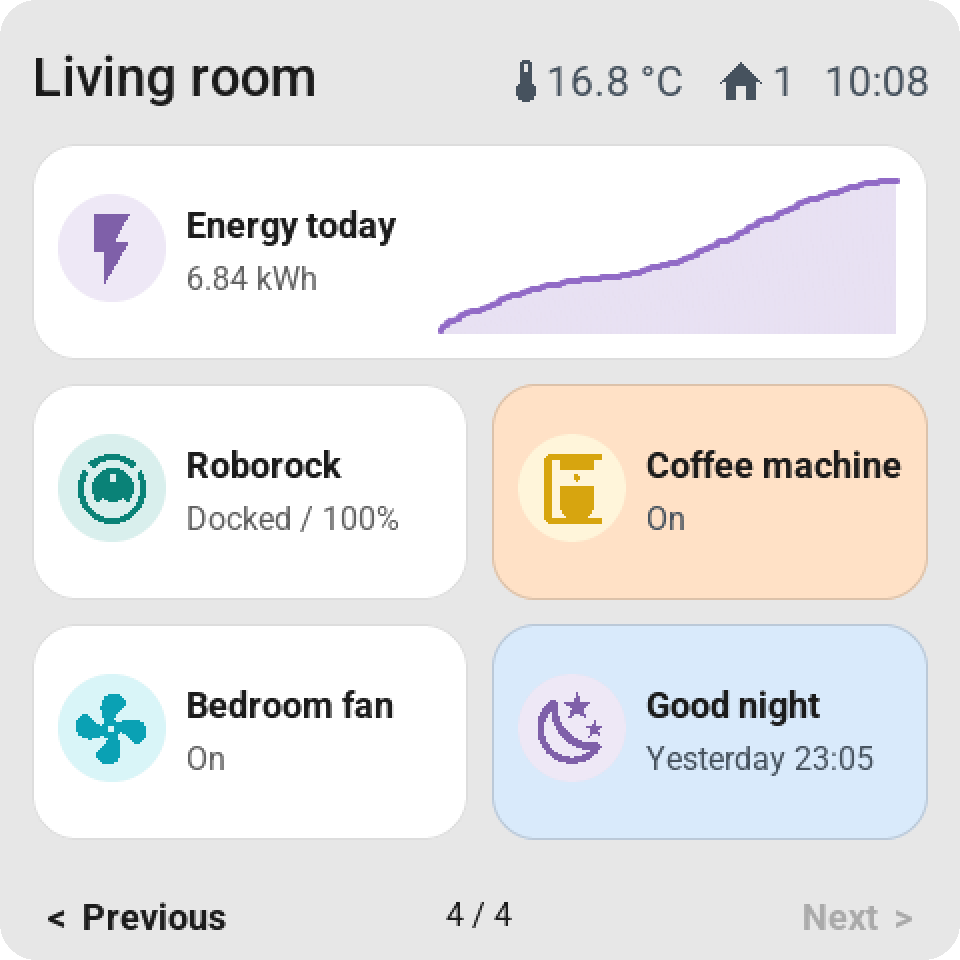
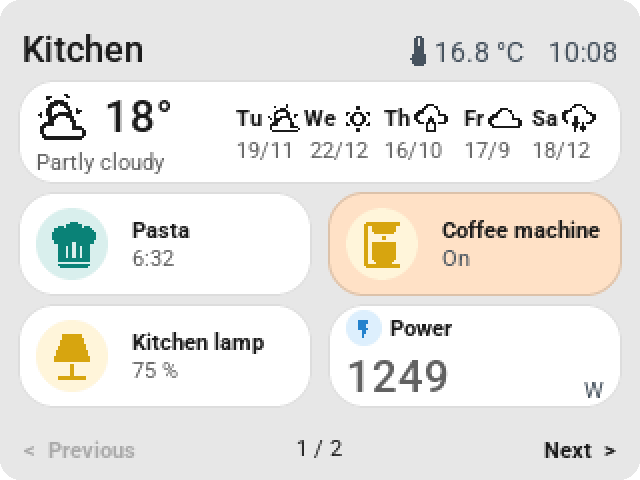
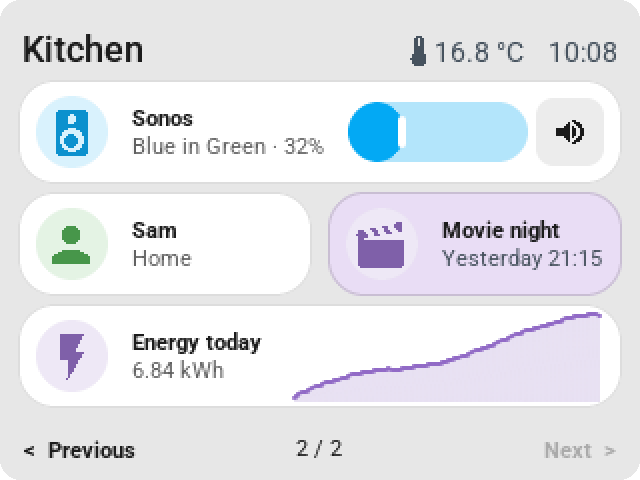
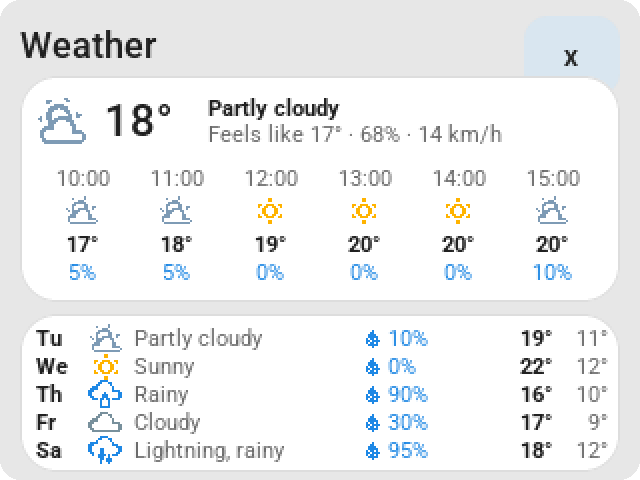
Guition 4-inch, 480 × 480 (top) and CYD 2.8-inch, 320 × 240 (bottom), rendered from the firmware's own LVGL code with a demo home.
## What you can configure
- **Up to twenty tiles**, spread across up to four fixed pages of six
tiles each. Search by entity, device, or room, and drag to reorder.
- **Per-tile settings:** a custom name, click behavior, a small slider where
supported, or a large value for things like temperature and power usage.
From firmware 0.2.13, the large value shows a small domain icon next to the
title; a number that's too long is truncated with an ellipsis, the unit stays visible.
- **Pastel backgrounds per tile:** choose red for an all-off script,
green for all-on, or any other color. The title and status stay dark and
readable. The color also appears in the screen preview; **Default** restores
the normal colors. Requires firmware 0.2.10 or newer. **None** drops the card
entirely: the content then sits at the same size directly on the screen background
(firmware 0.2.16).
- **Clock:** digital or analog. The analog clock has tick marks at 12, 3, 6, and 9
and, on a single tile, shows a calendar block (weekday, day, month) next to the
dial; double-width shows the digital time with the date beside it.
- **Light control:** brightness, rainbow color, and white temperature according to
the light's capabilities. Open the detailed control with a long touch.
- **More cards:** climate, vacuum, fan, cover, media player, sensors,
select/input_select, number/input_number, switches, scenes, scripts, and
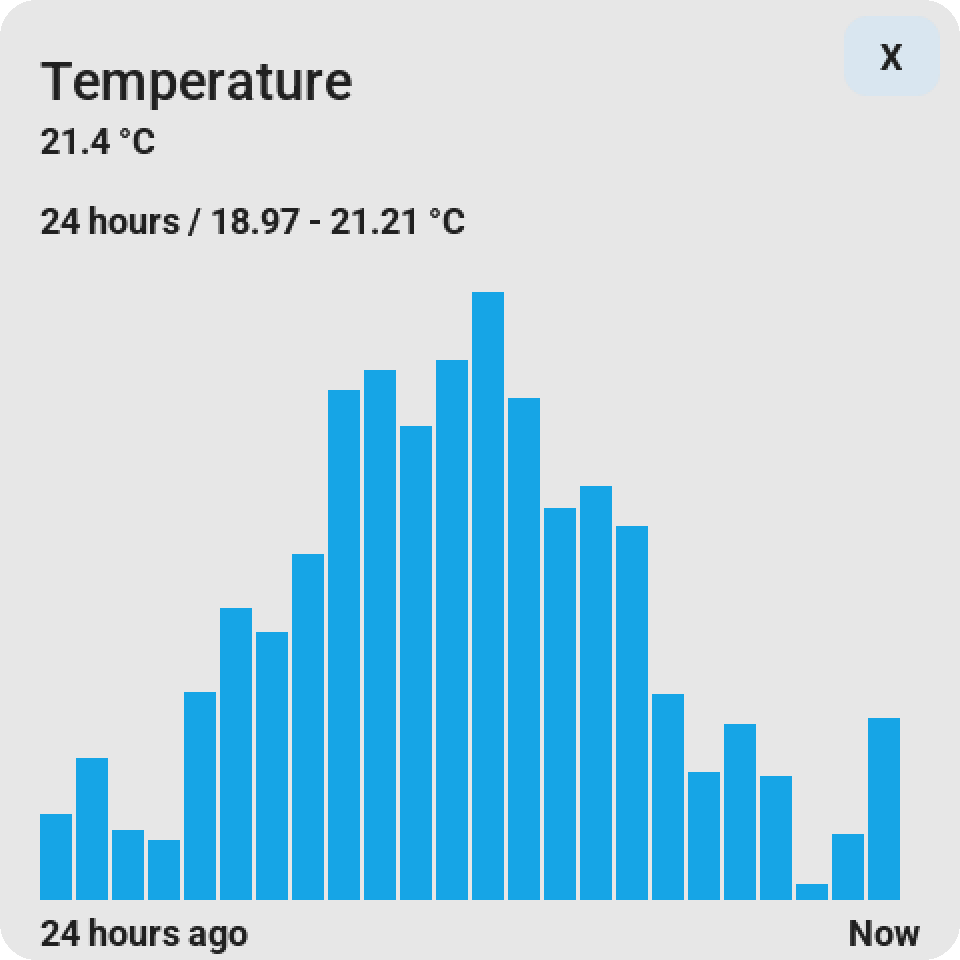
buttons. A sensor can open a history card for 1, 6, or 24 hours.
- **Special cards (firmware 0.2.14+):** a **clock** (digital or analog)
as a built-in tile, a **weather forecast** with five days on a
double-width card, a **graph** of the sensor history in the tile,
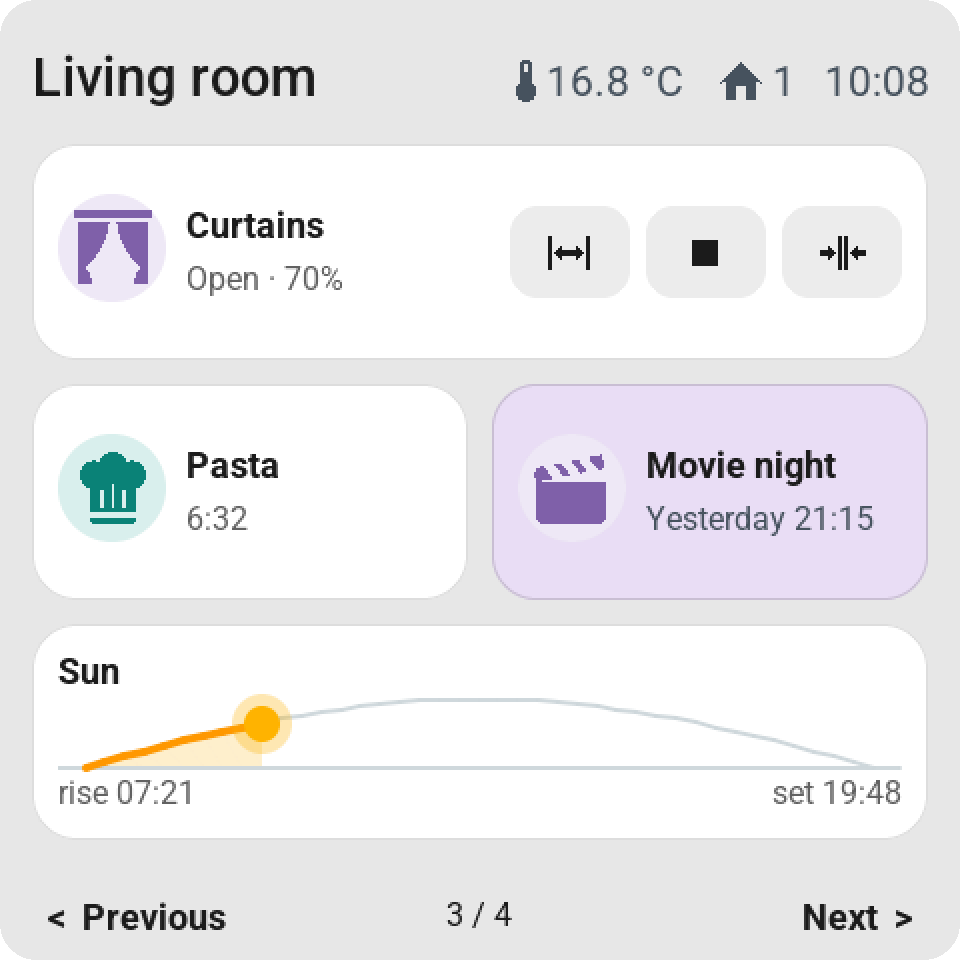
a **sun path** (`sun.sun`: horizon with the sun between sunrise and
sunset), a **timer** (`timer.*`, tapping starts or pauses it), and
**presence** (`person.*`). Pick them in the picker like any other tile, or
drag them straight into the screen mockup; **Double-width** is an option for every tile.
- **Direct control on double-width tiles** (firmware 0.2.19+), like the rows in
Home Assistant: temperature − / + or mode buttons (climate), a toggle (switch,
light, fan), start/stop/dock (vacuum), open/stop/close or a
position slider (cover), volume with mute or previous/play/next (media),
− / + or a slider (numbers), previous/next (select), start/pause and
cancel (timer), and a single button for scenes, scripts, and buttons. Configurable
per tile; **None** keeps the regular card.
- **Weather card** with current weather, the coming hours and days including chance of
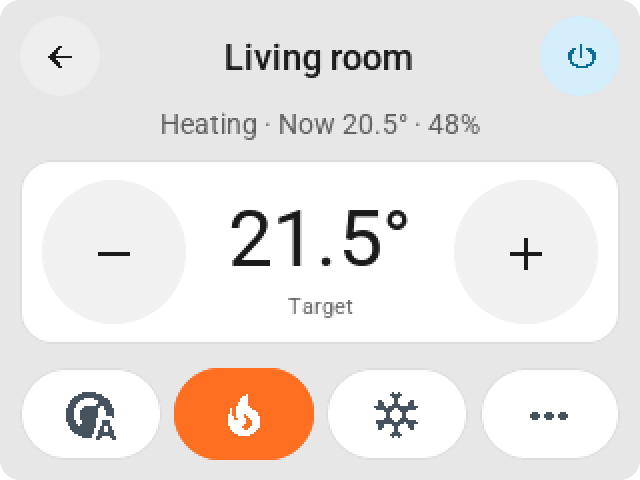
rain or millimeters; **climate card** with an on/off button, mode, fan, and swing settings.
The target temperature sits big between − / + keys with one row of mode keys below; the
Guition shows fan and swing right away on a card of their own, the CYD behind ···.
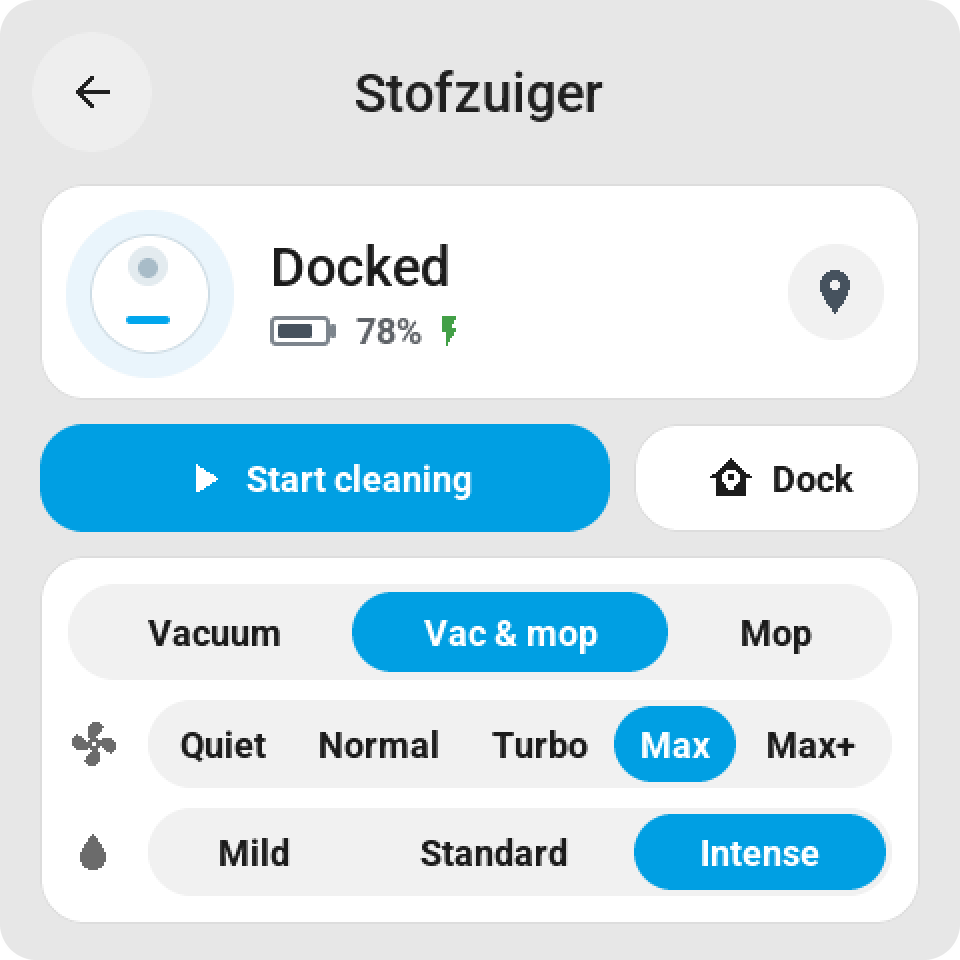
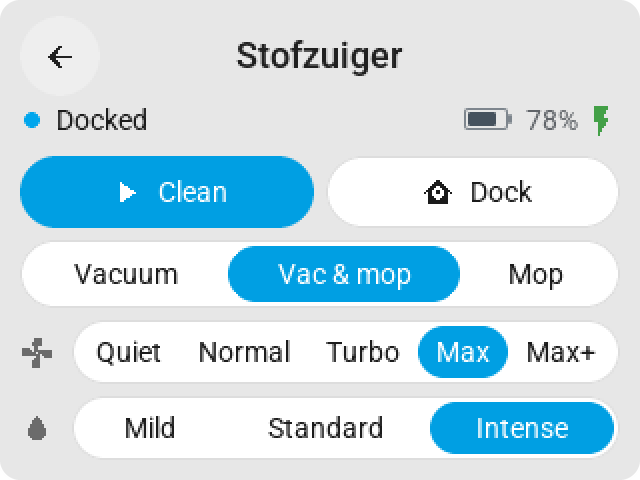
- **Vacuum card** with the state, battery and charging, start and dock, and how the robot
cleans: **vacuum, vacuum and mop, or mop only** for robots that offer a cleaning mode in
Home Assistant (such as Roborock), then suction and water. Only the rows the chosen mode
uses are shown (app 0.2.46 / firmware 0.2.39).
Scenes, scripts, and buttons show when they last ran. A tile that's waiting on
Home Assistant shows a small spinner on a light overlay.
- **Top bar per screen** (firmware 0.2.32+): the name on the left, up to six
items of your choice on the right: the time, an analog clock, the date, or an
entity from Home Assistant with an icon, such as temperature, humidity, power usage, a door
(open/closed), the alarm, who's home, or when something or someone last
changed ("5 min ago", "Yesterday"). See [Top bar](#top-bar).
- **Screen settings:** standby time, normal and dimmed brightness,
night hours, 24- or 12-hour clock, return to the home page, and optional swiping
between pages. Home Assistant automations can turn **Auto standby** off and on per
screen (firmware 0.2.41+), for example to keep a screen on while someone is home.
- **Guition rotation:** 0°, 90°, 180°, or 270°, directly from the management page.
Native LVGL rotation turns the display and touch together. The CYD keeps its fixed
orientation and its own calibration.
- **Inspector:** check entities, status, and configuration in ESP Screens.
Action feedback shows that a command is on its way.
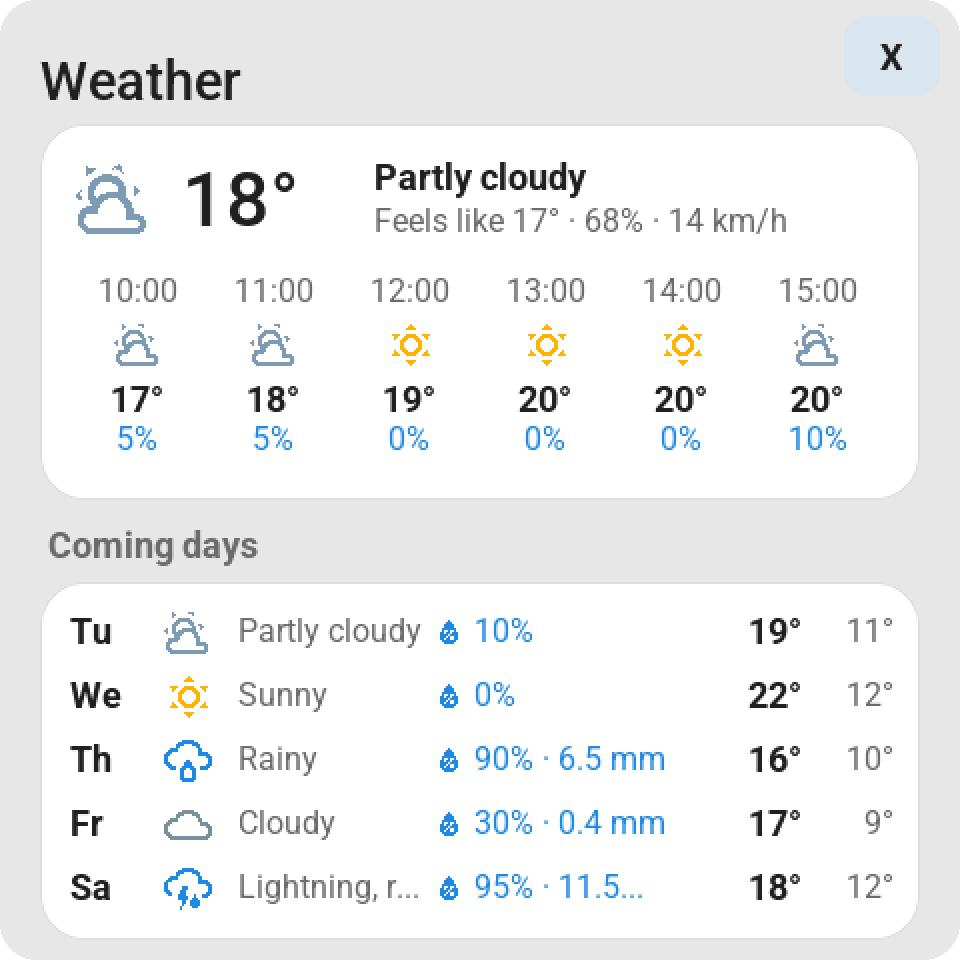
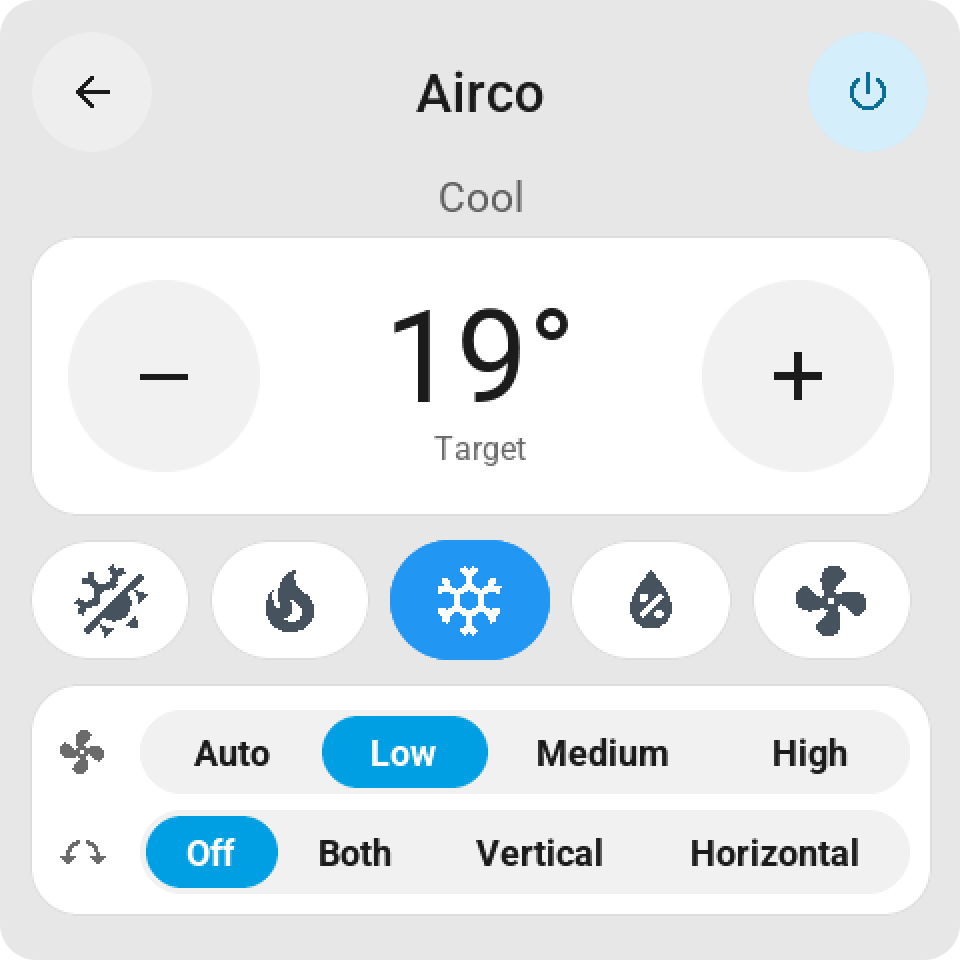
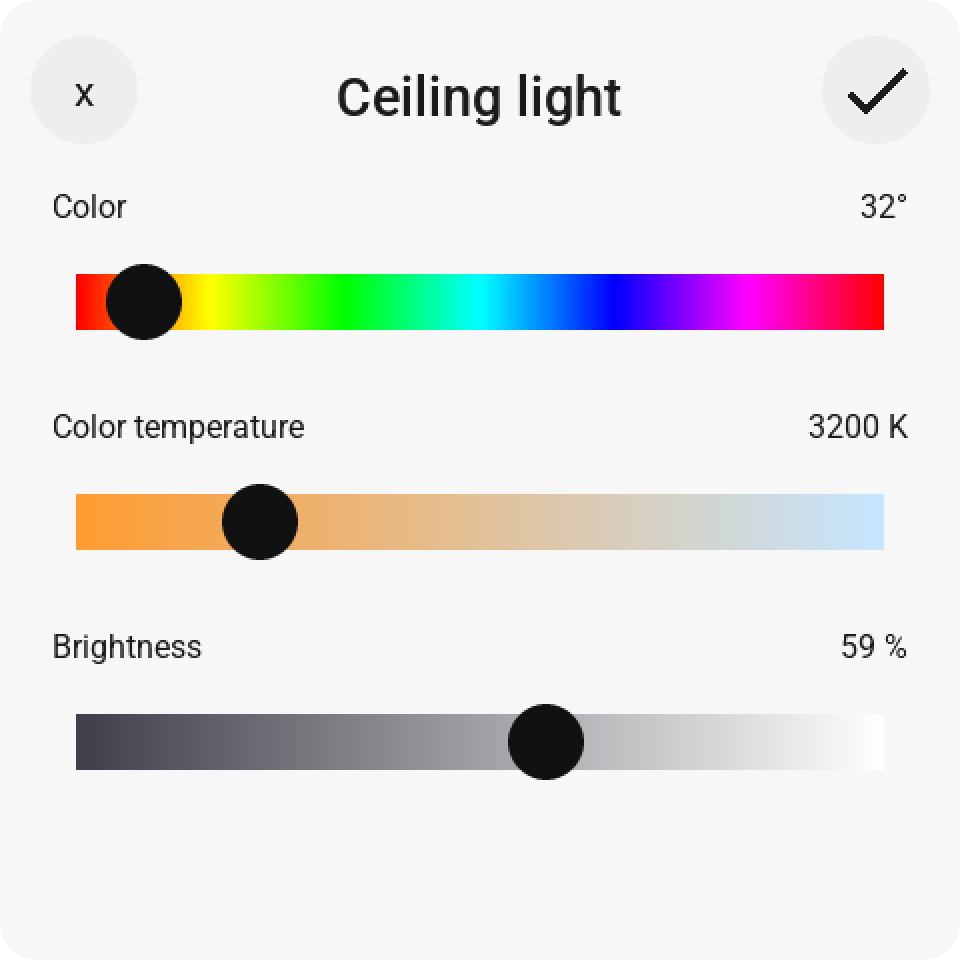
Features depend on the capabilities Home Assistant reports for an entity.
The app must keep running to keep the screens supplied with current data.
From firmware **0.2.12**, a long press on a switch shows a large
toggle. A short tap switches immediately; the off state gets a gray icon.
The feedback stops as soon as Home Assistant reports the changed state, with a
minimum of 150 ms for switches. Tiles with a mini-slider keep their
icon; on the CYD, the icon and text block are vertically centered.
## Alert from an automation
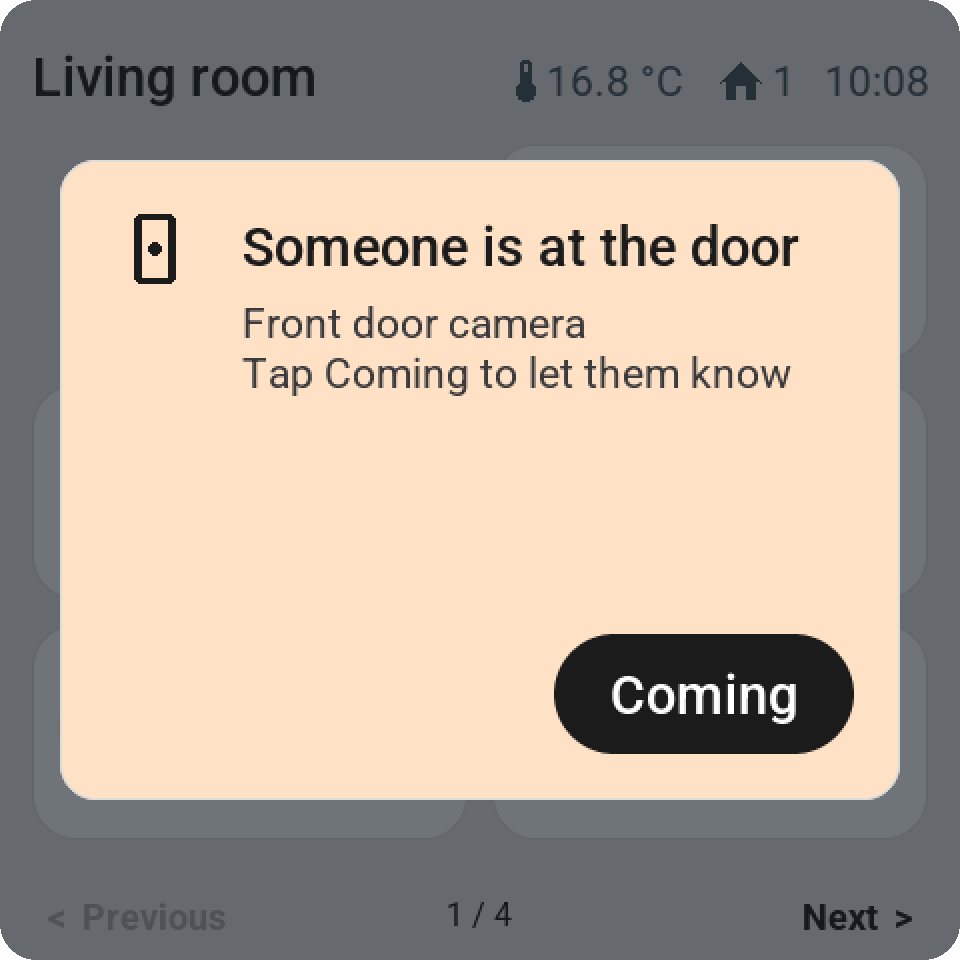
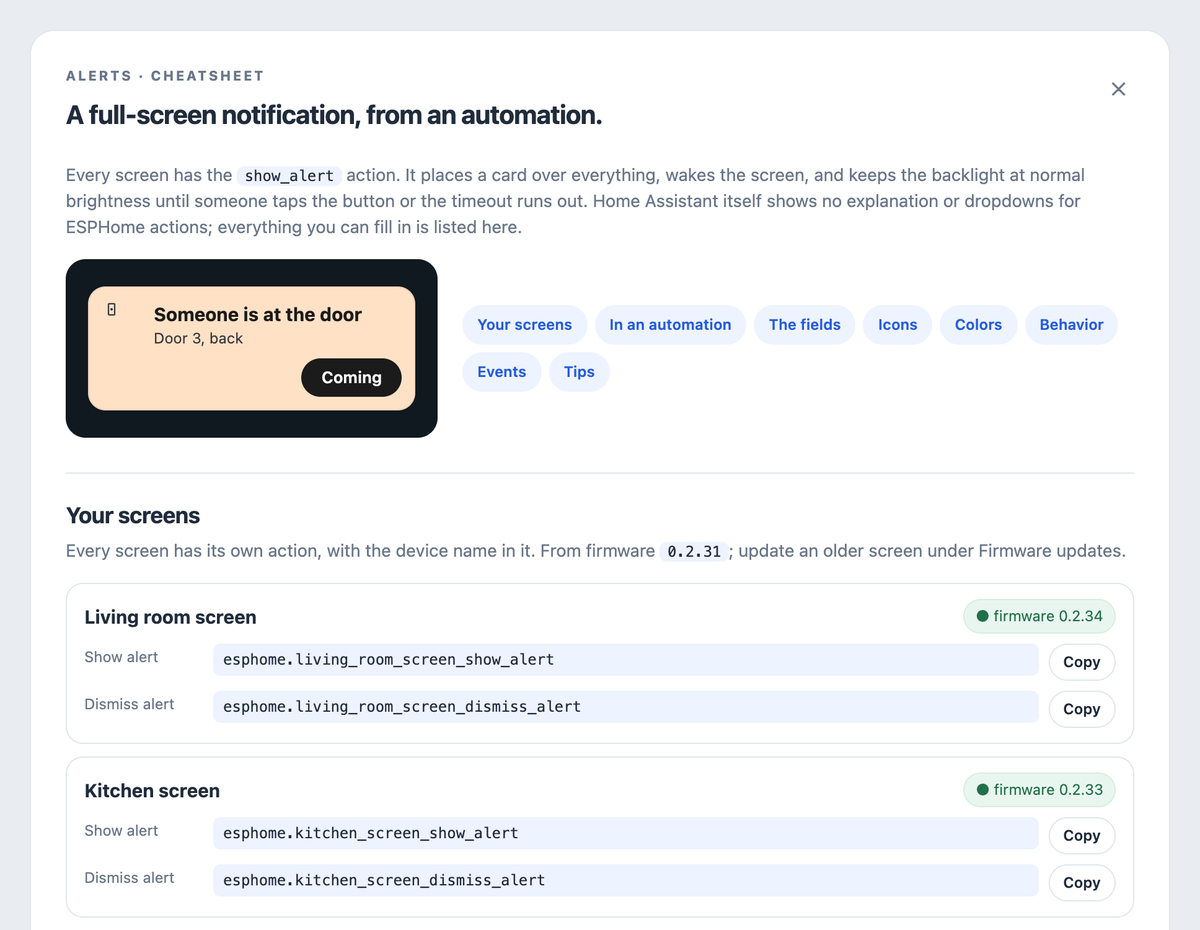
Every screen has the action **`esphome._show_alert`** (firmware 0.2.31+). It places
a card over the entire screen, wakes the screen, and keeps the backlight at normal
brightness until someone taps **OK**. In an automation:
```yaml
action: esphome.kitchen_screen_show_alert
data:
title: "Someone is at the door"
subtitle: "Door 3, back"
icon: doorbell
color: orange
button_text: "Coming"
timeout: 0
flash: true
```
- **`title`** and **`subtitle`**: a single-line title (truncated with an ellipsis if too long) and an
explanation that wraps across multiple lines. Empty is allowed; an empty title becomes "Notification".
- **`icon`**: a name from the tile picker, such as `doorbell`, `bell`, `alert-outline`,
`lock`, `door-open`, `motion-sensor`, `smoke-detector`, `water-alert`, `mailbox`, `car`,
or `account`. `mdi:doorbell` and the hex codepoint (`F12E6`) also work, as long as the glyph
is included in the firmware. Unknown falls back to the warning triangle.
- **`color`**: `red`, `orange`, `yellow`, `green`, `mint`, `blue`, `purple`, `pink`, or
`gray` — the same pastel shades as the tiles. Empty gives the white card.
- **`button_text`**: the text on the button; empty is "OK".
- **`timeout`**: seconds after which the card disappears on its own; `0` means it waits for the button,
however long that takes. The button always closes the card immediately, even with a timeout. Standby and
night mode wait as long as the card is showing.
- **`flash`**: `true` makes the backlight blink four times when the alert arrives.
In ESP Screens, **Settings → Alerts** opens a cheatsheet with the exact action name for each screen,
a ready-to-paste example, and all fields, icons, and colors. Home Assistant asks for all seven fields; leave a field empty (`""`, `0`, `false`) if you
don't use it. A new alert replaces the current one. Every end is reported as the event
**`esphome.screen_alert`** with `action` (`ok`, `timeout`, `replaced`, or `remote`), `title`,
`screen`, and the `device_id` that Home Assistant adds, so an automation can wait for OK.
**`esphome._dismiss_alert`** clears the card remotely.
### All screens at once
From app 0.2.45, one event reaches every screen that is online, screens you add later included.
ESP Screen Manager passes it on to each screen's `show_alert` action. The fields are the same;
the ones you leave out stay empty:
```yaml
actions:
- event: esp_screens_show_alert
event_data:
title: "Mail!"
subtitle: "There is post in the mailbox"
icon: mailbox
color: orange
timeout: 0
flash: true
```
**`esp_screens_dismiss_alert`** clears the alert on every screen. The app has to be running
for these two events; the per-screen actions work without it.
### Ask Claude
Use Claude Code in Home Assistant? **Settings → Claude → Install for Claude Code** writes an
ESP Screens skill to `/homeassistant/.claude/skills/esp-screens`, so Claude knows the events, the
tile settings and every field, color and icon. Then ask, for example: "Put the vacuum on the living
room screen", "Give the living room lights a brightness slider and make that tile wide", "Move the
vacuum to page 1" or "Show an alert on all my screens when the mailbox is full." Claude reads what a
screen shows from `sensor.esp_screens_` and asks before it changes anything. **Download for
claude.ai** gives the same skill as a zip to upload in Claude under Customize → Skills. Nothing is
written until you press the button.
## Installing from Home Assistant
### Do I need ESPHome?
**You don't need to install the separate ESPHome Device Builder app.**
ESP Screen Manager already includes the ESPHome CLI and can build firmware itself,
install it via USB, and later update it wirelessly over OTA.
**You do need to pair the flashed screen via the ESPHome integration in HA.**
That pairing lives under **Settings → Devices & services**, not in the
App store. Add the discovered device there. If it doesn't appear automatically,
choose **Add integration → ESPHome** and enter the screen's IP address.
If asked for a key, use the `api.encryption.key` from your own device YAML,
and grant the device permission to perform Home Assistant actions.
| Component | Needed? | What for? |
| --- | --- | --- |
| ESP Screen Manager app | Yes, for this installation route | Installing firmware, managing tiles, and sending current data to the screen |
| ESPHome Device Builder app | No, optional | Alternative editor and firmware installer; the same CLI is already in ESP Screens |
| ESPHome integration in HA | Yes, pair every screen | The connection between Home Assistant and the physical screen |
So a fresh installation without ESPHome Device Builder also works. If there's
no ESPHome `secrets.yaml` yet, our wizard asks for Wi-Fi once and
stores it locally. Existing Wi-Fi secrets are reused. API and OTA keys
are generated per new screen and stay in that device's own profile.
### Step by step
For Home Assistant Container (Docker) without the App store, follow [ESP Screens with Docker](docs/DOCKER.md).
For Home Assistant OS with Apps/Add-ons on **aarch64 or amd64**:
1. Open the App store and add this repository:
`https://github.com/MaxGramser/homeassistant_espscreen`.
2. Install **ESP Screen Manager**, start the app, and open **ESP Screens**.
ESPHome Device Builder is optional: the ESPHome CLI is already in this app.
3. Connect the screen with a USB data cable to the **Home Assistant machine**
and choose **Settings → New screen**: CYD or Guition, a name, the USB port, and
**Install**. If Wi-Fi is missing from the ESPHome `secrets.yaml`, the window
asks for it once and ESP Screens only adds the missing lines. The profile
with unique API and OTA keys goes into the ESPHome folder; the build
and flash run in the same window (a first build takes a few minutes on a
Raspberry Pi). Each screen gets its own profile.
4. **CYD:** go through the calibration on the screen. **Guition:** uses GT911
without resistive calibration. Then pair the discovered ESPHome device in
**Settings → Devices & services** using the API key the window
shows after installation (copy button). Grant the device permission to
perform Home Assistant actions.
5. Select the screen in ESP Screens, choose your tiles, and click
**Save & send to screen**. Then test the physical controls.
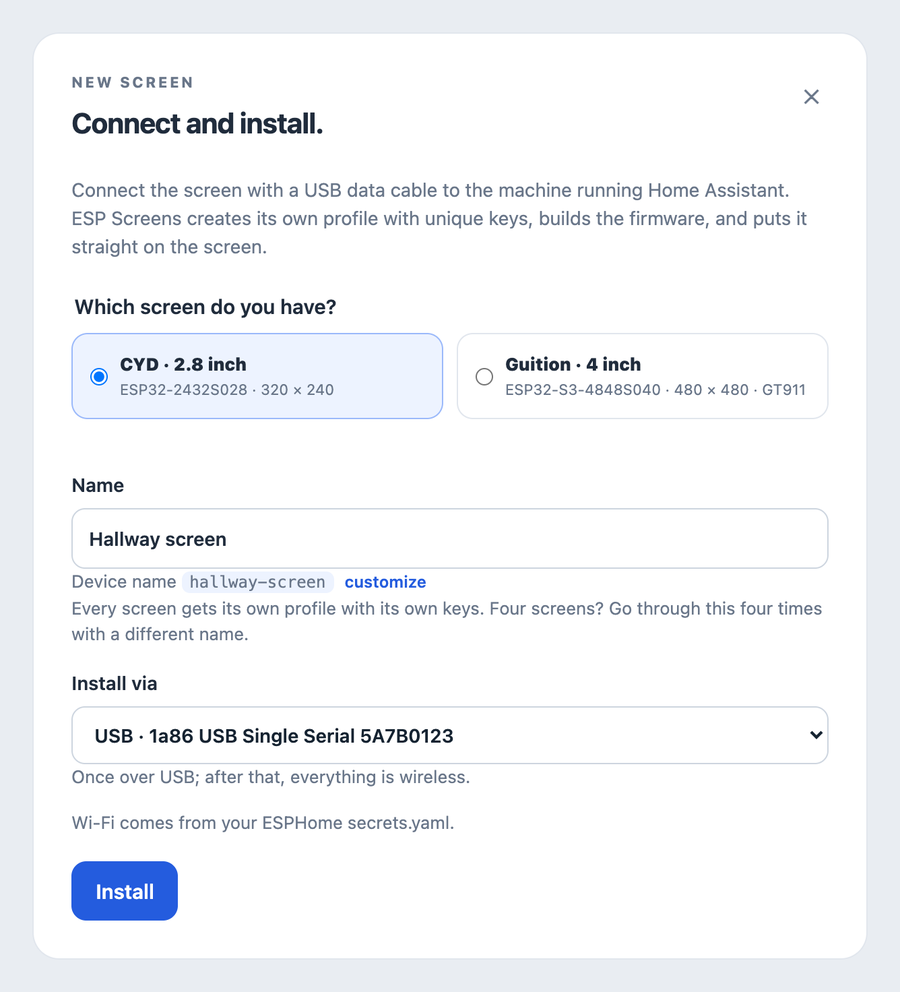
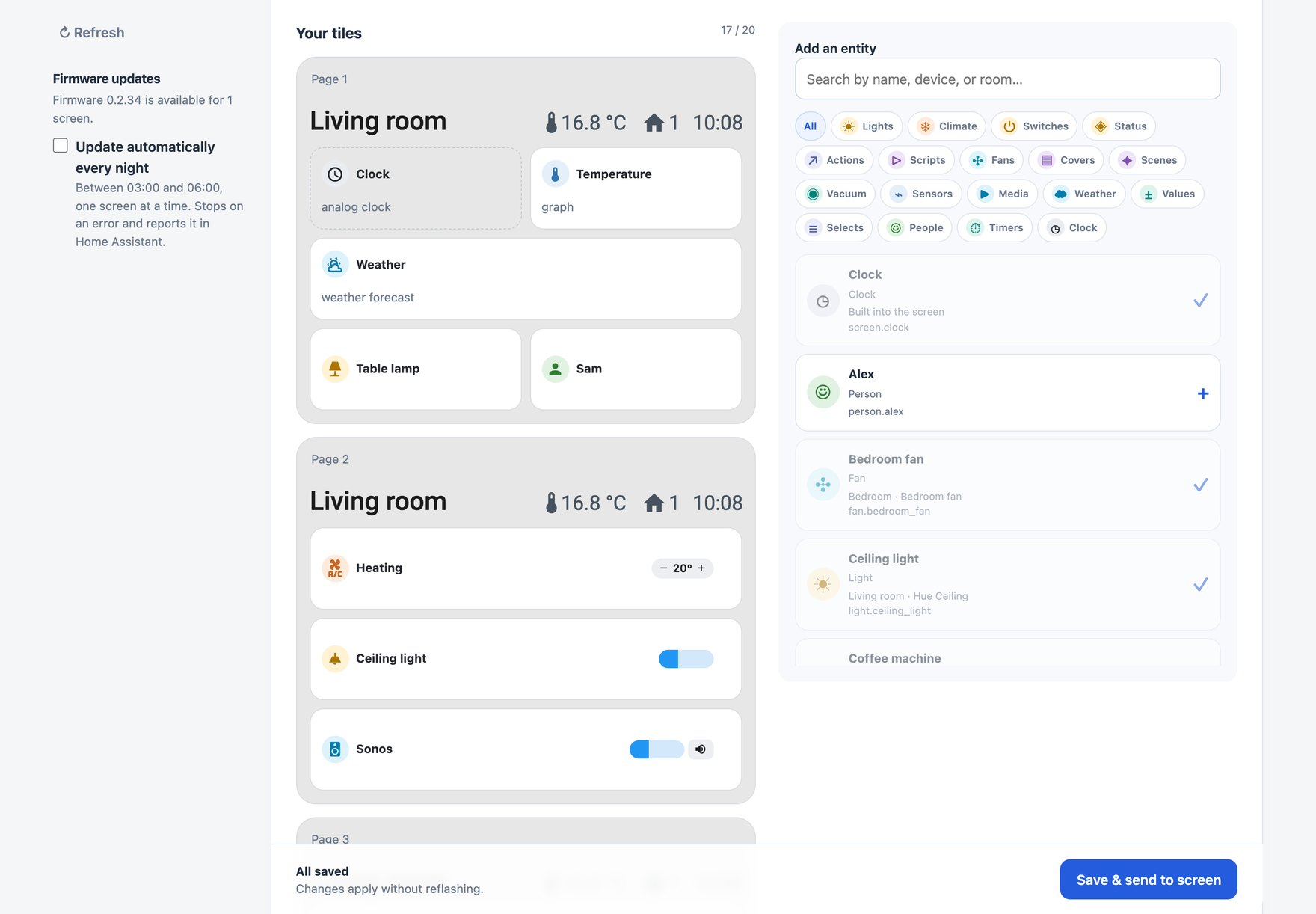
New screen (step 3) and choosing your tiles (step 5).
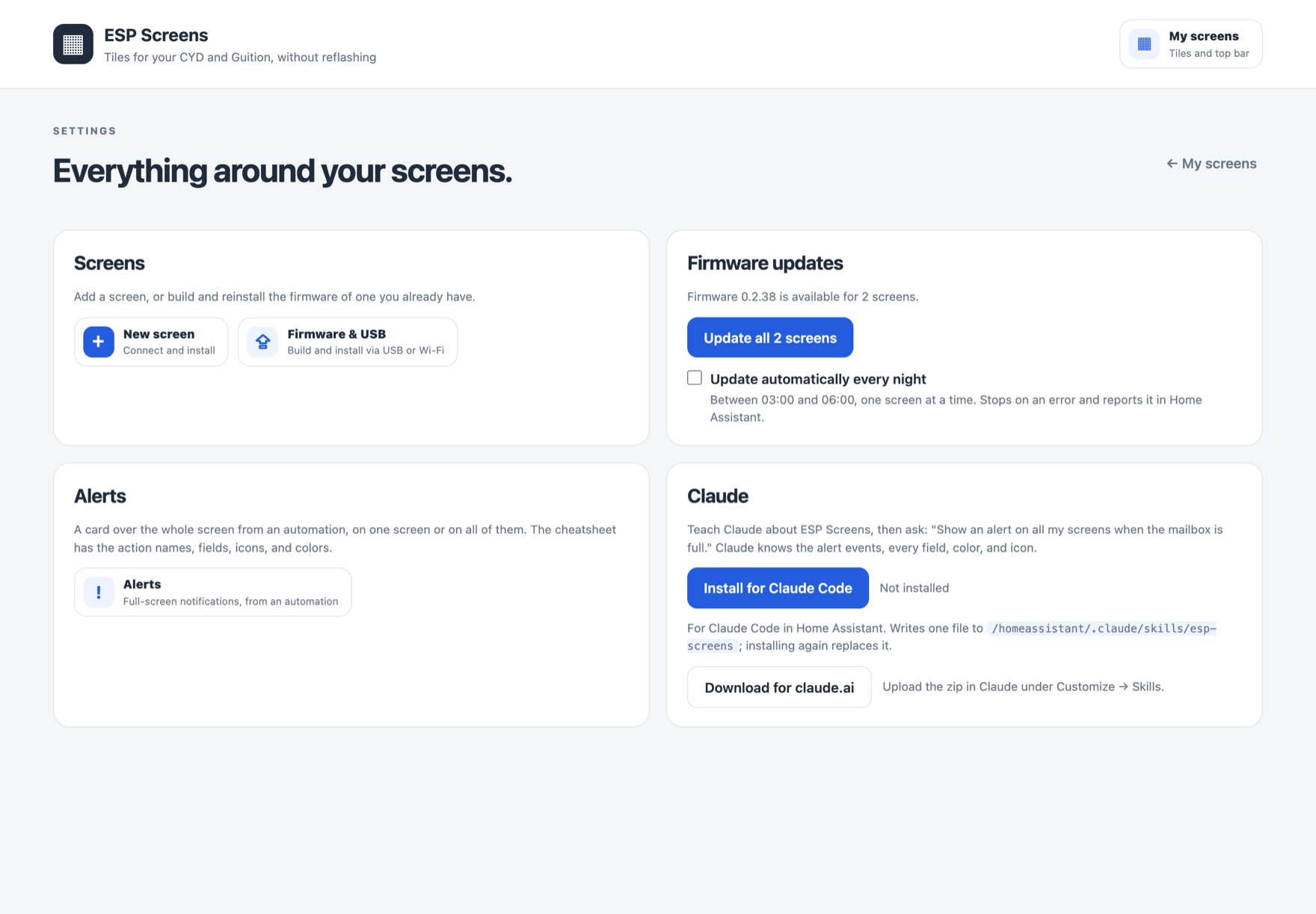
You can install new firmware later from **Settings → Firmware & USB → Wi-Fi / OTA**.
For an existing screen, always use the existing profile; creating a new
installation profile generates new keys.
## Customizing tiles and colors
Click a tile in the screen preview. Under **Pastel background**, choose a color,
such as red or green. Optionally adjust the name, click action, mini-slider, or large
value. Click **Save & send to screen** to apply the changes.
After the first supporting firmware update, this requires no new flash.
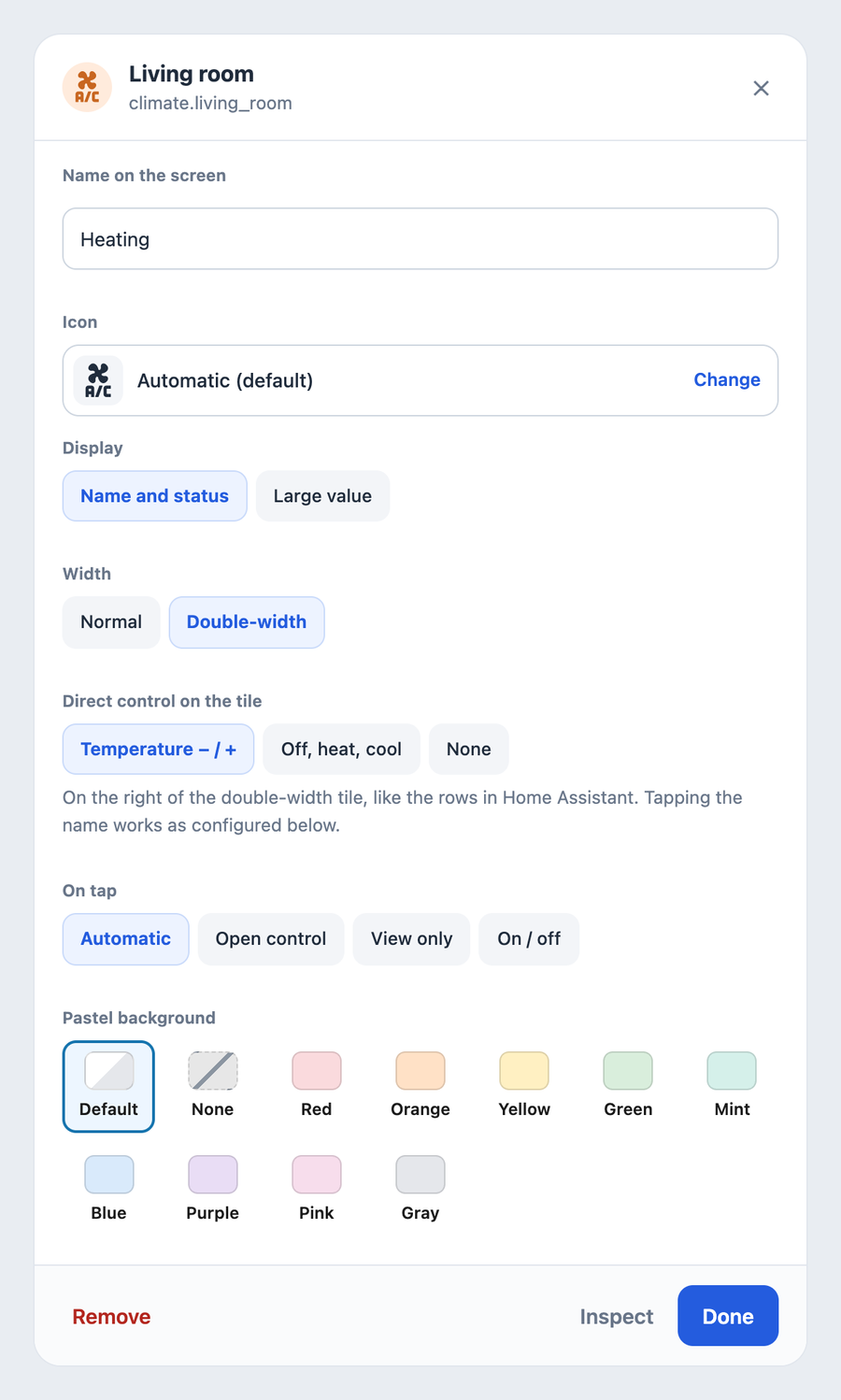
The settings of the Heating tile, and that tile on the screen: double-width with temperature − / +.
A color is a fixed choice for that tile: it stays red, for example,
even when you run the all-off script. The entity status and action feedback
stay separately visible.
## Top bar
At the top of the editor, each screen has its **Top bar**: the name on the left, up to
six items on the right. **+ Add** offers the time, an analog clock, and the date (which
keep ticking on the screen itself, even without Home Assistant), suggestions from your own
home (temperature and power usage from the screen's room, the weather, how many people are home,
sunrise and sunset), and a search field for any entity, including a phone
(`device_tracker`), a lock, the alarm panel, or `zone.home`. Drag the items
to change their order; tap one to configure it:
- **What to show:** the state as Home Assistant writes it (21.3 °C, 65%,
1,249 W, Open/Closed, Home/Away, Armed away), or **Last changed**: "Just now",
"5 min ago", "Yesterday". A timestamp sensor can also count forward ("In 2 hours").
- **Icon:** automatic, matching Home Assistant (an open door gets an open-
door icon), a custom icon from the list, or no icon.
- **Show:** always, or **only when active**: the item only appears when it's
on, open, home, or greater than 0. Handy for an open door or a running
washing machine. Active items are colored like in Home Assistant (open door amber,
alarm armed green, alarm triggered red).
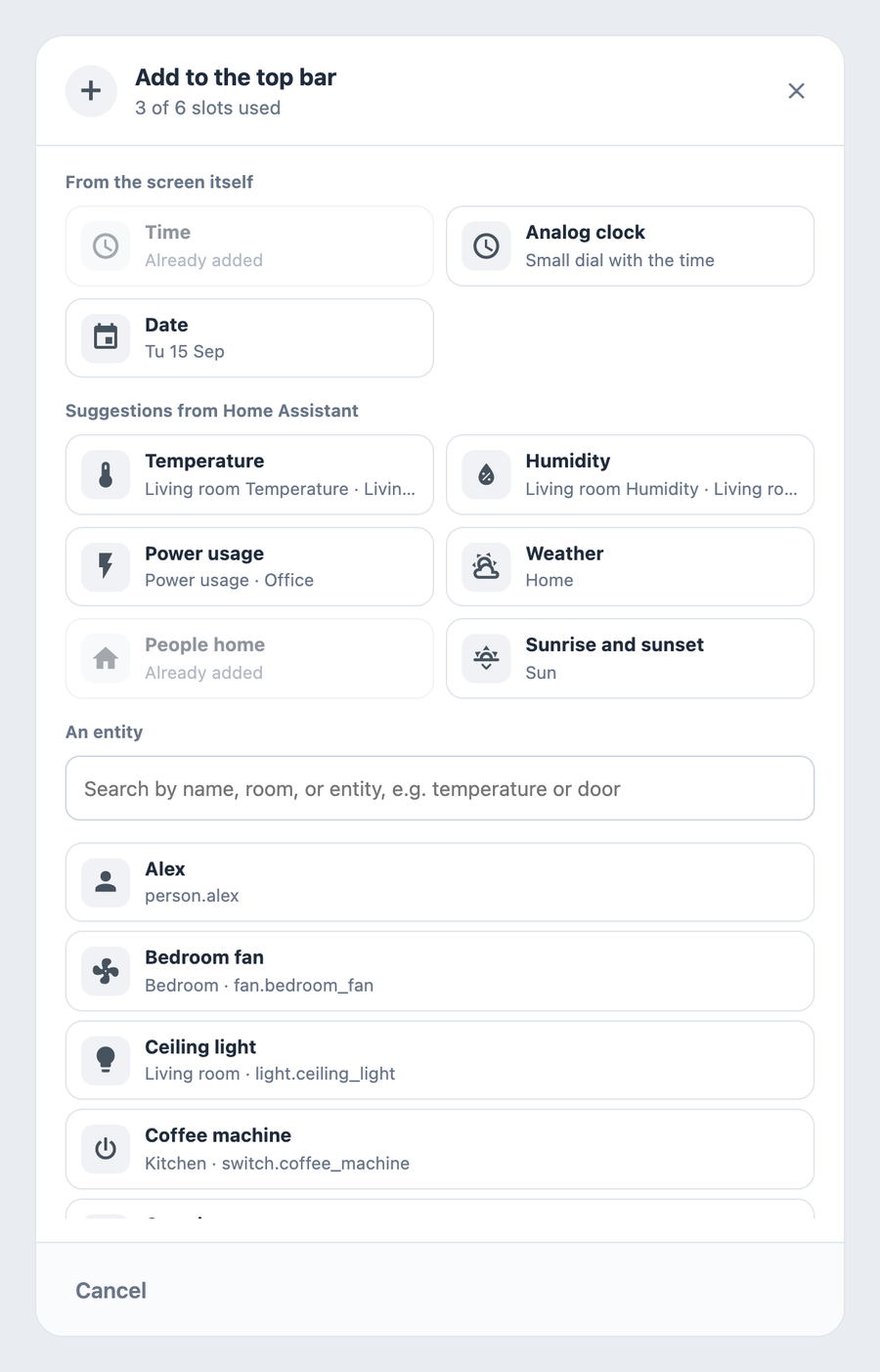
The screen preview draws the bar with the same letters and rules as the screen:
all values on one line with the name, icons aligned to digit height, equal spacing.
If not everything fits next to the name, the name gets an ellipsis and the screen drops the
leading items; the editor marks those with dashes. Until updated, older firmware shows
only the name and the time (if that's in the bar).
## Updates and keeping your settings
| Change | Action |
| --- | --- |
| Tiles, names, colors, order, or screen settings | Save in ESP Screens; no firmware flash |
| New version of the management page | Update ESP Screen Manager in the HA App store |
| New feature on the physical screen | The **Update** button on the screen (badge *Update x.y.z*), or **Update automatically every night** under Settings |
Every app version belongs to one firmware version. After an app update, the list
shows per screen whether newer firmware is available. **Update** builds that screen's own profile
with the built-in CLI, installs it wirelessly, and waits until the screen is back.
With the checkbox enabled, that happens automatically at night, one screen at a time; a
failure stops the round and posts a notification in Home Assistant. Firmware
0.2.17+ reports its own device name and IP address for this; an older screen asks
for the IP address once. You can still do it manually via Settings → Firmware & USB → Wi-Fi / OTA.
The device's own YAML and Wi-Fi/API/OTA settings stay in the ESPHome config folder.
Tile layouts and options live in the app's persistent data. CYD calibration and
screen preferences stay stored on the device. Updates don't replace this
user data. Do still make normal Home Assistant backups and keep your
device profiles; removing an app or wiping flash memory is not an update.
**Efficient, even with many screens (0.2.39 / firmware 0.2.33).** The app sends a
screen only the tile that changed, as a single action
(`esphome._screen_message`) instead of chunks in a text field.
Every two minutes, a small ping follows with the layout revision; if the
screen reports that it doesn't match (after a restart, for example), everything is resent.
Graphs on sensor tiles come from Home Assistant's statistics, in one
query for all screens. Older firmware still works via the text field and the
full resend every two minutes. The diagnostic sensor `Uptime` has been
replaced by the `Last boot` timestamp.
See the [release history](screen_manager/CHANGELOG.md) and
[releases and protocol compatibility](docs/RELEASING.md).
**If you publish your own fork:** every push to GitHub is a release. Always also
bump the add-on version in `screen_manager/config.yaml` and log the change in
the CHANGELOG, otherwise the HA App store won't offer an update. A change to the
screen also gets a new `SCREEN_FIRMWARE_VERSION` in both board profiles.
## Guides and installation help
- [Complete installation from ESP Screens](docs/EASY_SETUP.md)
- [Guition hardware, mounting, and rotation](docs/GUITION.md)
- [CYD calibration and USB diagnostics](docs/CALIBRATING.md)
- [Instructions for developers and LLMs](AGENTS.md)
Give a developer or LLM a clean copy of this repository and, for example:
> Read AGENTS.md, README.md, and docs/EASY_SETUP.md. Help me install this CYD or
> Guition screen via USB on my Home Assistant. Identify
> the board and use my existing profile if one already exists. Guide me through
> calibration, HA pairing, tile selection, and physical tests. Keep keys local,
> and state which checks were actually carried out.
A successful build doesn't prove the physical touch or panel image is correct. The owner
must check the display and perform the requested taps.